
Add and Manage Markers
Add, classify, find, filter, edit, and share Incident-wide geographic Markers.
What Markers are
Markers record field information at geographic locations within an Incident. They belong to the Incident, not to an individual GeoPDF.
Markers remain available as you switch Maps. They can exist outside a selected GeoPDF boundary and still appear on the surrounding Topo Map surface.
Marker symbols and classifications help you organize your own field information. They do not automatically give a Marker official operational status or replace normal communication and verification.
Add a Marker
- Open Topo Map or an imported GeoPDF Map.
- Tap Add Marker.
- Place it manually, use an accepted current location, or enter coordinates.
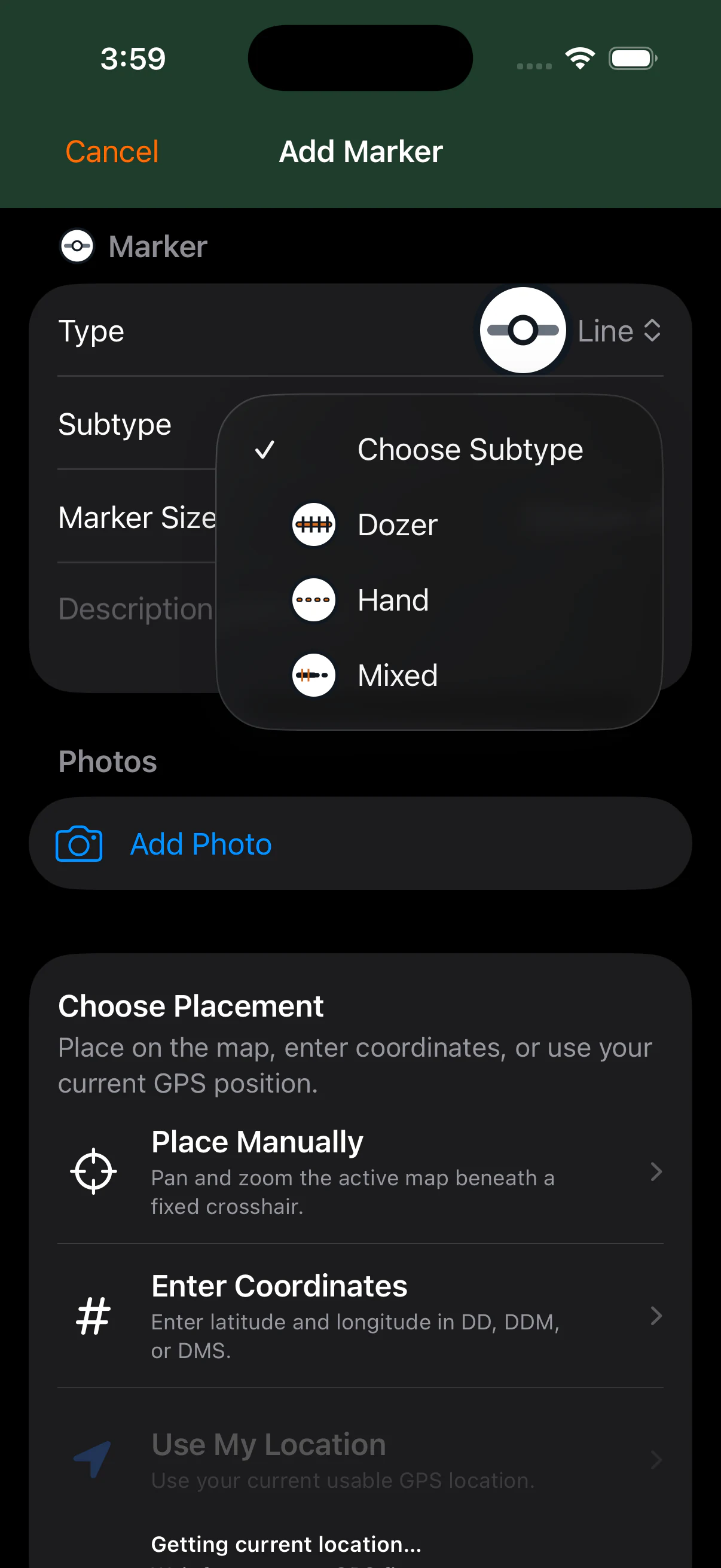
- Choose the Marker type, supported classification when available, and size.
- Add a description or photos when useful.
- Save the Marker.
Marker types
The primary Marker types are Access, Line, Safety Zone, Lookout, Hazard, Hazard Tree, Water Source, Value at Risk, Structure Triage, and Other.
Only these types have supported classifications:
The other Marker types do not have subtypes.
- Line: Dozer, Hand, or Mixed.
- Water Source: Dip Site, Draft Site, Hydrant, or Restricted Water Source.
- Structure Triage: Defensible - Stand Alone, Defensible - Prep and Hold, Non-Defensible - Prep and Leave, Non-Defensible - Rescue Drive-By, or Unknown.
Search and filter Markers
Search Markers by their descriptive and classification text. Use Filter Markers to show one or more Marker types, or choose Show All to clear the search and type filters.
The same visibility state applies across the Incident map and Marker list workflow. A Marker hidden by the current search or type filter is hidden on the map and in the list until the filter changes.
View and edit a Marker
Select a Marker on the map or in the Marker list to open its details. From there you can review its type, classification, description, coordinates, and photos; edit its information; move it; share it; or delete it.
Moving a Marker changes its geographic location without discarding its other information. Deletion removes it from the Incident, so use that action deliberately.