
See Your Location on the Map
Show your iPhone's location on Topo Map or a GeoPDF overlay and understand the compass and map orientation controls.
Allow location access
MCG Maps uses your device's location to show your position on an Incident map. The first time the app requests location access, allow it while you are using the app.
Location is processed on the device and is not uploaded to MCG servers as part of normal app use.
Show and recenter on your location
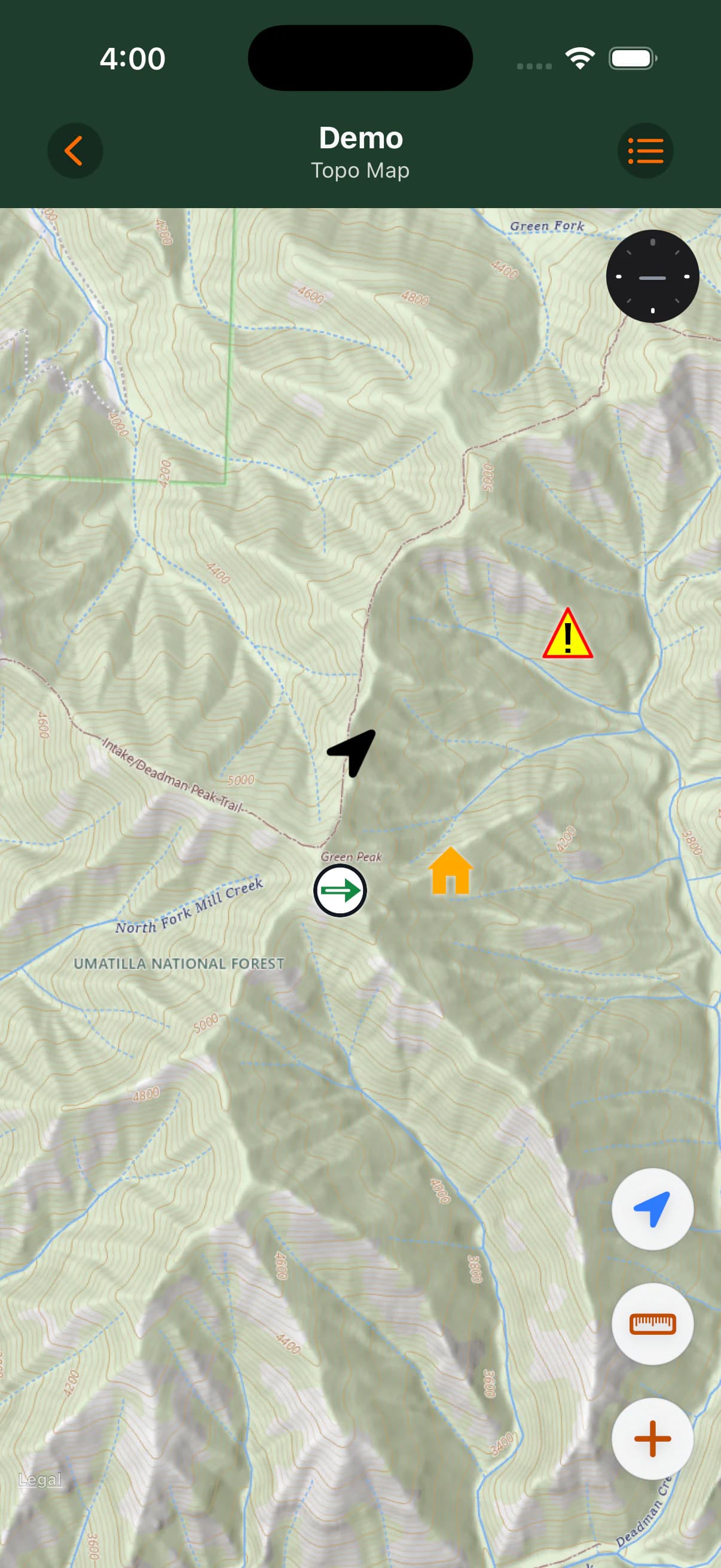
Your location can appear directly on Topo Map. When viewing an imported GeoPDF, it appears in geographic context with the PDF overlay and can continue onto topo beyond the PDF boundary.
The iPhone may obtain GPS location without cellular service, subject to normal device, permission, signal, and environmental conditions. Online USGS topo tiles still require network access.
- Open an Incident.
- Open Topo Map or an imported GeoPDF Map.
- Tap My Location to recenter the map on an accepted current location.
- Allow the device a moment to obtain a suitable location sample.
Location sample checks
MCG Maps checks location information before displaying it. A sample may be rejected when it is too inaccurate, too old, invalid, or otherwise unsuitable for reliable placement.
If MCG Maps has not received an acceptable location, allow the device time to obtain a better fix. GPS is not infallible and does not replace checking the map, your surroundings, and normal operational information.
Compass and map orientation
Maps can rotate. The device-heading compass reports the direction the iPhone is facing; it does not control map rotation.
A separate map-orientation indicator appears when the map is rotated. Tap it to reset the map to north up without changing the map center or zoom.
If location access is denied
If permission has been denied, MCG Maps cannot display your current position. Open iOS Settings, allow location access for MCG Maps, and return to the map.